Learning Blender in 2026 and beyond
Published March 23, 2026
I first discovered Blender back in around 2008, when the Blender Foundation released the "Big Buck Bunny" open movie. I was intrigued that it had been created entirely in open-source software, so I downloaded Blender to give it a try, couldn't get my head round it, and gave up. That was probably something like Blender 2.4.
Over the next few years I kept an eye on the Blender website, downloaded it again a few times, every time getting a little bit further before getting frustrated and giving up. Coming from the world of 2D design, the addition of having to navigate and move in 3D space was overwhelming.
It's only in the last four or five years that something's clicked. After downloading Blender again (now on version 3.3) I found myself actually making progress, understanding more of what the software was capable of, and being able to create what was in my head. And that's down to a couple of things.
Since that first download, Blender has developed enormously. Somewhere around version 2.8 the UI was given a massive overhaul, with the result it became much more approachable and consistent. Also, when I had that first attempt, tutorials were fewer and far between. Now, YouTube has a huge volume of tutorials on just about any Blender topic you might want to dig into. If you tried Blender years ago and gave up like I did, it's definately worth taking another look.
The decision to get serious and actually stick with it came after watching "Sprite Fright", Blender Studio's 2021 horror-comedy open movie, directed by former Pixar story supervisor Matthew Luhn. It's an amazing piece of work, and the fact that it was created in open-source software, that anyone can download for free, completely blows my mind.
So here's a few things I've learned since I started tinkering with Blender, what helped, and what I wish I'd known earlier.
Why Blender?
First of all, Blender is free. Totally free, forever, for everyone.
It's open-source, and can run on Windows, Mac and Linux. If you're looking to try learning 3D without committing to expensive software subscriptions, it's an obvious starting point. If you're familiar with how much professional design software usually costs, this is a big one.
Secondly, the community around Blender is huge, tutorials are plentiful, and it's genuinely capable of professional-quality output. The sardines, the squash jar, the worm, everything on my 3D page was made in Blender.
The learning curve is very steep, but I think that would be the same for most 3D software (the only other one I've tried was C4D and it didn't gel with me), and if you have any experience in 2D creative software you already have a bit of a head start.
Where to start
A lot of people will point to Blender Guru's donut tutorial as the first thing you should look at to learn Blender. I did, and it's a perfectly good introduction to what the software can do. But as a first tutorial it's quite involved, and if you're anything like me you'll finish it having made something that looks great but barely remembering the steps you went through to make it.
I'd suggest finding a smaller tutorial focusing on one specific thing you're interested in learning and use that as a starting point.
Here's a list of a few free Youtube channels and tutorials that I've found useful:
- Grant Abbitt
- CG Cookie
- Polygon Runway
- Drug Free Dave
- Ryan King Art
- Polyfjord
- Blender Vitals
- crzyzhaa
- Cody Gindy
There are also a few paid resources and tutorials that you might want to look at:
- Patata School
Run by the studio behind Cabeza Patata. Their courses are particularly good for illustrators coming from a 2D background. - Blender Studio
Run by the Blender Foundation themselves, giving access to training videos and production files from the team behind the open movies (including Sprite Fright). If you want to learn from the people actually making that amazing work in Blender, this is about as close as it gets. Plus, your subscription also goes towards funding Blender's ongoing development, which feels like a good thing to support.
Some tips I've learnt along the way
Keyboard shortcuts are your friend
Like a lot of creative software, keyboard shortcuts in Blender can really speed up your workflow. And Blender has a lot of them. And I mean a lot of them. Don't try to learn them all at once, just pick up the ones relevant to what you're doing and let the rest come naturally.
Bonus tip – you can right click on any almost any menu item/action and select "Add to quick favourites", then if you press Q you get a handy little menu where you can keep all your most used functions and operations.
Small, finished projects are better than big, abandoned ones
Starting things is easy, finishing them is hard. But a completed sardine tin is worth more than a half-finished character that's been sitting in a file for three months. Finishing things, even small, simple things, builds knowledge and understanding in a way that endlessly tinkering with one project doesn't.
Try Cycles and EEVEE
Cycles produces beautiful, physically accurate renders but can be slow depending on your hardware. EEVEE is the real-time renderer, it's great for stylised illustration work. I love EEVEE, and it's the renderer I use most of the time.
Don't neglect the camera
It sounds obvious, but the camera is as much a creative tool as anything else in Blender. Try playing with focal length, depth of field and angles – the same scene can look completely different depending on how you position your camera.
Modifiers are magic
The modifier stack is one of Blender's most powerful features and probably one of the least intuitive things for newcomers. Learning what modifiers do and when to use them will transform how quickly you can model things, and until you expand them they're non-destructive, so you can keep tweaking and tinkering with their settings. If you're coming from 2D design software, it's a similar idea to adjustment layers and smart objects in Photoshop, or effects in Illustrator.
Fake it with texture
You can create a lot of complex looking detail using textures, bump mapping or normal maps rather than having time spend time creating actual geometry. Fake it til you make it, baby.
The future of Blender
I'm still learning, still making mistakes, still occasionally losing an hour to a shading problem I should have solved in ten minutes and forgetting all the keyboard shortcuts. It's capable of so many different aspects of modelling, texturing, animation, etc that I've really barely scratched the surface, but Blender's quickly become my favourite bit of software to play around with, and because it can do so much, there's always something new to try.
Development seems to move at a cracking pace at the moment. Unfortunately though, with the latest release of the Blender 5 series my aging Mac won't run it as they no longer support Intel-based Macs:( So, until I can upgrade to a shiny new machine I'll be sticking with the 4.5 LTS release. If anyone reading manages to find a solution to building a 5.1 version to run on an Intel Mac, get in touch and pass that info on.
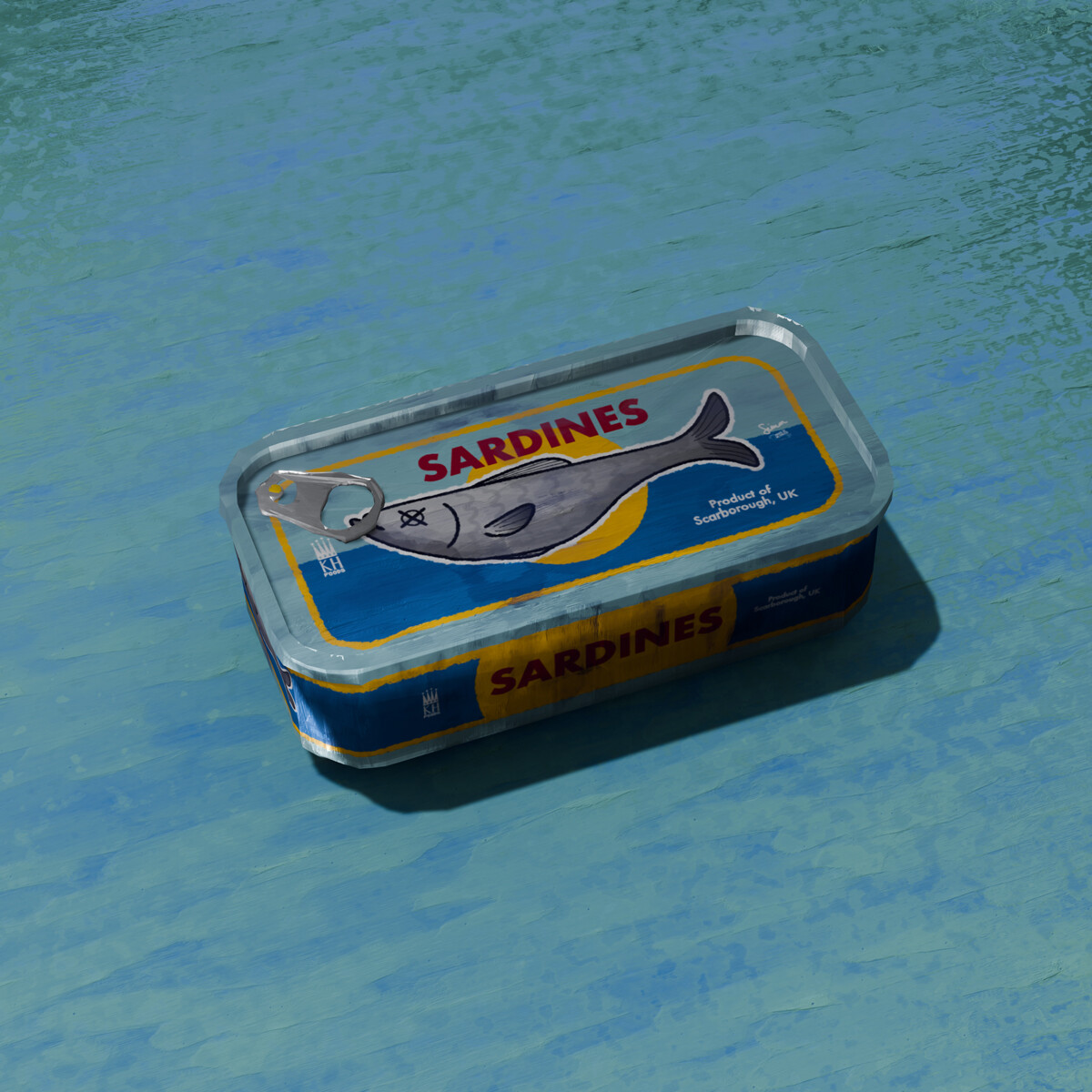
3D portfolio
If you haven't already, take a look at my 3D portfolio.
And if you've got a project that could use a pop of 3D, get in touch.